 Local Hair Color
Is it safe to upload a selfie to a hair color app? What to check first
A hair color try-on needs the most personal kind of photo there is: a clear picture of your face. It’s reasonable to wonder where that picture goes. The answer differs from app to app, and a few quick checks will tell you most of what you need to know before you tap “choose photo.”
The short versionWhether it’s safe to upload a selfie to a hair color app depends on the app. Check its App Store privacy label, whether it requires an account, where the photo is processed, what it keeps, and what it strips when saving. A hair color app that works without uploading your photo keeps all of that on your phone.
Five things to check in any hair color app
You don’t need to read a whole privacy policy to get a good sense of an app. These five questions cover most of it, and they work for any photo app, not just ours.
Before you choose a photo
- Read the App Privacy label. On the App Store listing, scroll to App Privacy. It lists the kinds of data the developer says the app collects and whether any is used to track you.
- Notice whether an account is required. An account links your photos and activity to an email or profile. Ask whether a try-on really needs one.
- Find out where processing happens. Look for a clear statement on whether your photo is analyzed on your device or sent to a server.
- Ask what’s kept. Does the app keep your original, the edited versions, or a history of your sessions? For how long, and where?
- Check what’s in the saved file. Photos can carry location and camera details. See whether the app removes them from the copy it saves.
Also check how the app asks for your photos. On iPhone, Apple’s photo picker lets you share a single photo without giving an app access to your whole library. That’s a good sign.
How Local Hair Color handles each point
Here’s how the same five questions apply to this app, as plainly as we can put it.
What leaves your phone, and what doesn’t
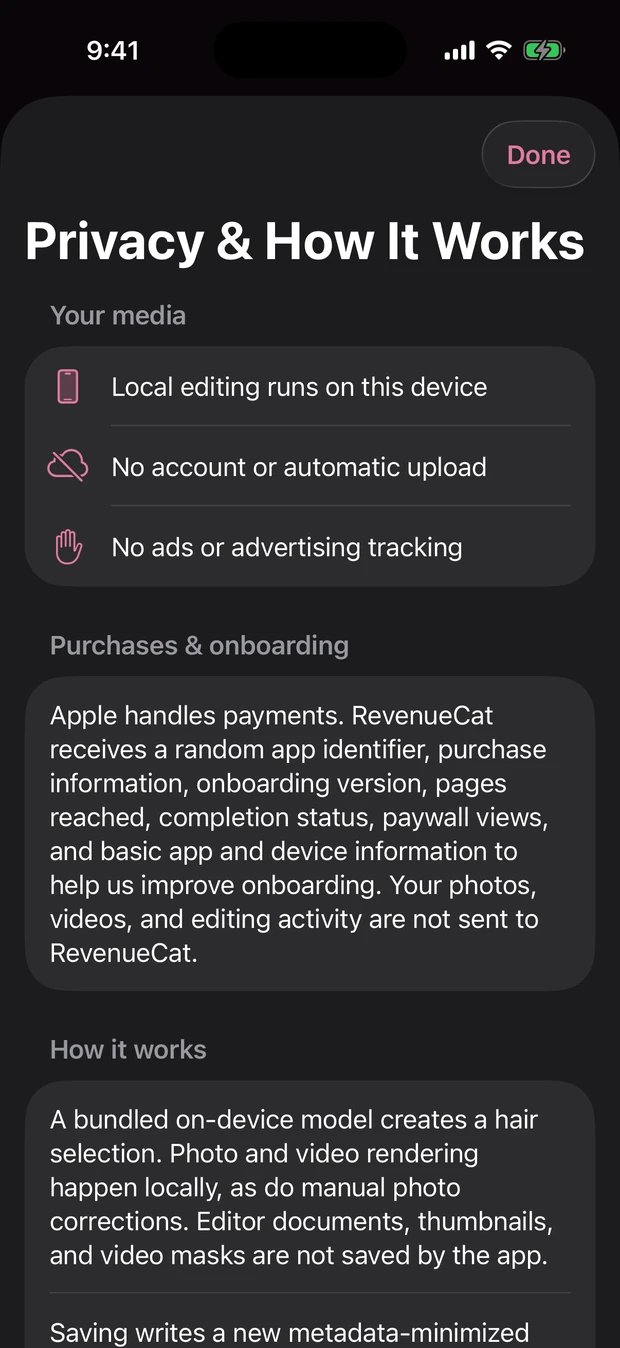
Your photos and videos, the colors you try, your brush corrections, and your saved edits are not sent anywhere. The app does use RevenueCat for purchase reporting and limited onboarding analytics. Those never include your photos, videos, colors, or edits. There are no ads and no ad tracking. You can read the App Privacy section on our App Store listing and the privacy policy for the full picture.
No account
There’s nothing to sign up for. You open the app and choose a photo. Purchases go through your Apple Account with Apple’s StoreKit, the same way as any App Store purchase, and restoring a purchase uses that too.
Hair detection runs on your device
You pick one photo or video with Apple’s picker, and only that item is shared with the app. A hair-detection model bundled inside the app finds your hair on your iPhone or iPad. There’s no photo server. Previews, color changes, intensity, and Refine Selection corrections all happen on the device too, which is why switching shades is quick.
No gallery of your edits
The app doesn’t keep a collection of your photos, hair selections, or edits for later. When you replace the photo or leave the editor, that session ends. While you edit a video, the app works from a temporary copy on your device. The only lasting result is the photo or video you choose to save to your own library.
That also means there’s no project history to reopen. If you love a preview, save it.
A cleaner saved copy
Saving writes a new photo, or an MP4 for video, and never overwrites your original. The new file leaves out your GPS location, original filename, camera serial number, and other unrelated details. The app asks only for permission to add to Photos, and only when you save.
One honest caveat: removing hidden details doesn’t hide what’s visible. Your face, your home, or a landmark behind you can still identify you, so glance over the picture before sharing it anywhere.
On-device is not the same as fully offline
Choosing a photo, finding your hair, previewing, correcting, comparing, and saving happen on your device. Buying or restoring access uses Apple’s StoreKit and may need a connection, and the purchase reporting and onboarding analytics described above use the network. We’d rather tell you exactly where the line is than call anything “100% private.”
Simple habits for any photo app
- Share one photo at a time with Apple’s picker rather than granting full library access, when an app offers the choice.
- Pick a photo without anything personal in the background, like mail, a house number, or your street.
- Avoid sending the original photo to support or in a review unless you really mean to. A written description usually does the job.
- Revisit Settings, then Privacy & Security, then Photos, now and then to see which apps can reach your library.
A quick gut check.
If you couldn’t explain where your selfie goes after you pick it, look again before you tap. A good app makes that easy to find.
If privacy is one of several things you’re weighing, our guide on how to choose a hair color try-on app covers the rest, from shade range to edge editing. When you’re ready to try it, how to try on hair color from a photo on iPhone walks through each step.
Quick questions
Is there a hair color app that doesn’t upload my photo?
Yes. Local Hair Color finds your hair and previews colors on your iPhone or iPad with a model built into the app. Your photos and videos aren’t sent to a server.
Does Local Hair Color use my photos to train AI?
No. Your photos, videos, and edits aren’t sent anywhere, so they can’t be used for training.
Does the app need access to my whole photo library?
No. Apple’s picker shares only the photo or video you choose. The app asks for permission to add to Photos only when you save.
Does the app work without internet?
The editing itself runs on your device. Purchasing or restoring access uses Apple’s StoreKit and may need a connection.